ASIC network scanner · Antminer batch tool
BTC Tools – ASIC Miner Management Software
BTC Tool scans your local network, finds every connected ASIC miner and lets you configure pools, restart units and track hashrate across the whole fleet without opening a single miner’s web panel. Windows and Linux.
Latest release v1.3.4 · previous version v1.3.3 still available · Windows & Linux · no installation required
| IP | Model | TH/s | Temp |
|---|---|---|---|
| 192.168.1.14 | S19j Pro | 104.2 | 62° |
| 192.168.1.15 | S19j Pro | 103.8 | 64° |
| 192.168.1.16 | S21 | 197.5 | 71° |
| 192.168.1.17 ▲ | S19 Pro | 38.1 | 89° |
| 192.168.1.18 | S21 | 198.0 | 69° |
| 192.168.1.19 | S19 XP | 141.0 | 58° |
Overview
What BTC Tools Does
Managing each ASIC miner separately is tedious, and once you have ten or more it becomes genuinely hard. Every pool change, every worker rename, every reboot means the same loop: find the miner’s IP again, open its web panel, log in, repeat. BTC Tools removes that repetitive work by talking to all of your miners on the network at once.
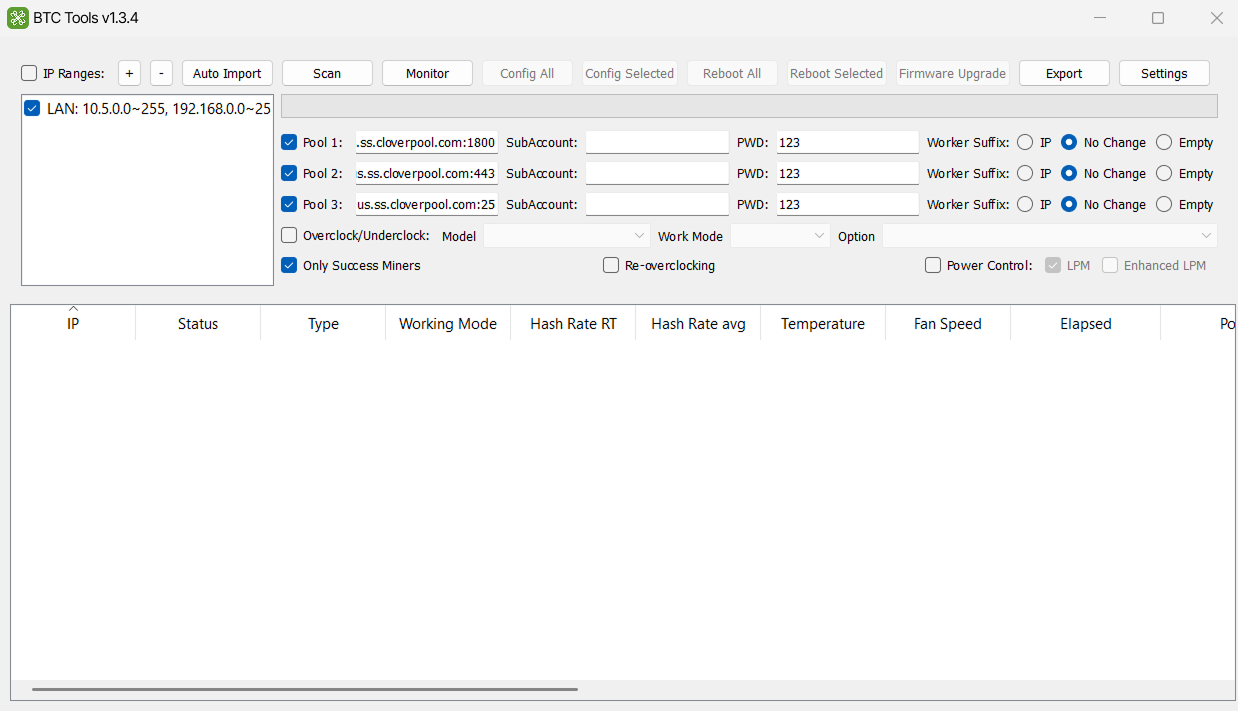
The software runs locally on your Windows or Linux machine, connected to the same network as your ASIC miners. It scans the IP ranges you define, identifies responding miners and collects their current state in a single sortable table – hashrate, board temperature, fan speed, pool address, worker name and firmware version. From there, any setting you would apply to one miner can be applied to a whole selected group at once.
That makes BTC Tools equally useful in both cases. A home setup with one or two miners, or a full farm with hundreds of machines across separate subnets – either way, migrating to a different pool takes minutes instead of an entire shift.
Features
Key Features
Local Network Scanner
Define one or several IP ranges and BTC Tools finds the ASIC miners sitting inside them. Ranges can be given your own names – “Group 1”, “Room 2” – and switched on separately, so you don’t have to scan the whole farm every time. And if a miner’s address changed after a router reboot, there is no need to dig into router settings: run a scan and the device turns up again.
Real-Time Fleet Monitoring
Detected miners report hashrate, the temperature of every board, fan speed, uptime and pool status. Values update as the scan runs, so a miner with a dropped hashrate or a rising temperature is visible during an ordinary check – not in the payout report at the end of the month.
Batch Pool Configuration
Select the miners you need and write the pool address, worker name and password to all of them at once, in a single action. However many miners you have, switching to a different pool or changing a password takes as long as it would for a single one.
Batch Restart
Restart selected miners without opening their interfaces one by one. Useful after a mass settings change, during scheduled maintenance, or when recovering devices that stopped sending hashrate to the pool.
Firmware Updates
Update firmware across a group of compatible miners at once. When every device runs the same version, the farm behaves predictably. When versions differ, miners start behaving differently and it becomes hard to work out what the problem is.
Power and Frequency Profiles
Switch power modes or set the frequency for a whole group at once – for the models that support it. That way you cut consumption when electricity gets more expensive, or reduce heat in hot weather, without reconfiguring every device by hand.
Sorting and Anomaly Flags
Click any column and whatever falls outside the norm rises to the top: the hottest boards, or the lowest hashrate. Rows that cross the limits you set are highlighted automatically, so a problem is visible straight away instead of hiding in a long list.
Static IP Assignment
Assign permanent IP addresses to the miners you found so they stop changing after a router reboot. Every miner then keeps its place in the list, and group settings reach exactly the miners you addressed them to.
Download
Download BTC Tools
Current release is v1.3.4. Previous builds stay available below.
BTC Tools v1.3.4 Latest
Nothing to install: unpack the archive and run the file. Inside are two versions – one for 64-bit Windows, one for 32-bit – pick the one that fits your system.
Download for WindowsBTC Tools v1.3.3
The older version. If the new one does not work on your machine, download this one instead.
Download v1.3.3BTC Tools for Linux
Install from the command line with sudo snap install btctools, or open the Snap Store page.
Release history
BTC Tools Versions
Below is a table of all BTC Tools versions and which of them are available today.
Compatibility
BTC Tools for Antminer
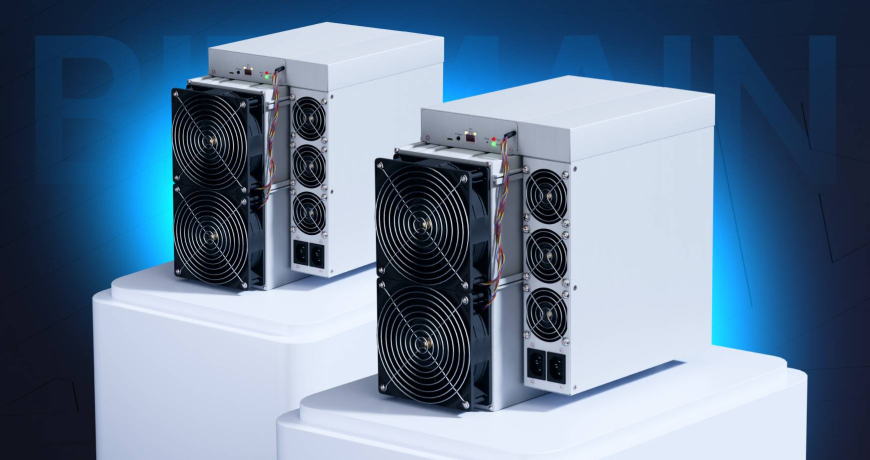
BTC Tools is most often used with Bitmain Antminer, and this is where it helps the most: if you have a dozen identical miners, the settings reach all of them in one action.
Finding miners, monitoring, pool setup and restart work on every supported Antminer model. Firmware, power and frequency depend on the model itself and its firmware version – on some miners these are available, on others they are not.
Workflow
How to Use BTC Tools
Set your IP range
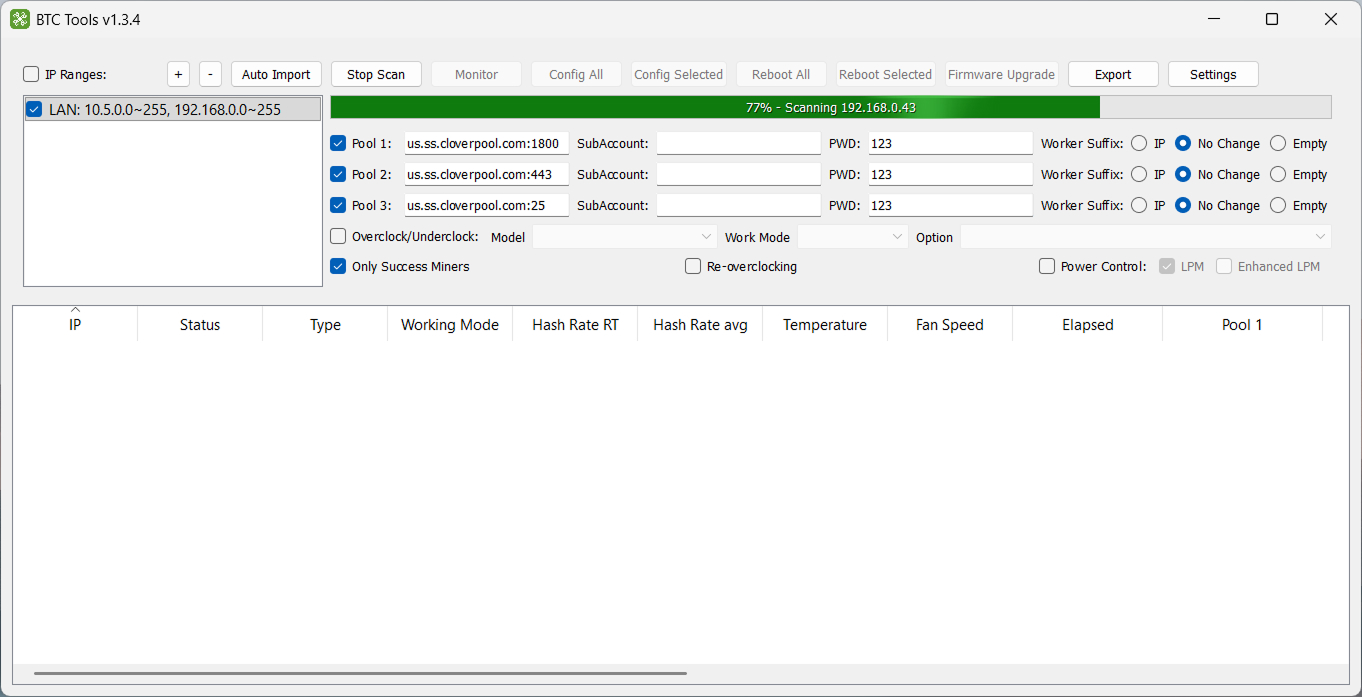
On first launch BTC Tools fills in the network of your computer. If your miners are connected to a different one – type in the range you need. You can add several IP ranges and name each one yourself: “Group 1”, “Garage”.
Run the scan
Start the scan and the table fills with every miner it finds. If some of them use a non-standard password, enter it in the settings first – otherwise they show up as addresses with no data.
Sort and find the problems
Click a column header to re-sort the list. Sorting by temperature or hashrate puts the problem miners straight at the top – faster than reading through two hundred rows.
Apply settings to a group
Select the miners you need and, in one action, change their pool, worker names or power profile, restart them or update the firmware. Just try it on two or three first, and only then apply it to the whole farm.
Diagnostics
Hashrate and Temperature Monitoring
A miner that is running is not necessarily a miner that is earning. A board overheats and throttles down, a fan fails, a hashboard drops out: the electricity bill stays the same while the output falls several times over. From the outside you would never notice – the miner hums, the lights are on, everything looks fine.
BTC Tools shows board temperature and fan speed next to hashrate. Together these numbers explain the cause. If a miner has climbed to 89 °C and puts out a third of what it should, it is overheating. If it stays cool with the same drop, the problem is the board or the pool settings. Both faults look identical from the outside, but they are fixed differently, and the table tells you where to look before you walk over to the miner.
You set the limits yourself – to match your own hardware and how hot the room gets.
Requirements
System Requirements
| Operating system | Windows 7 or later, or a 64-bit Linux distribution |
|---|---|
| Network | The computer must be on the same local network as the miners |
| Computer | No special requirements – any modern PC or laptop will do |
| Display | 1366×768 or higher – the table is wide, so Full HD is more comfortable on large farms |
| Permissions | Access to the local network; the firewall must allow the scan |
FAQ
Frequently Asked Questions
Which version of BTC Tools is the latest?
The current version is v1.3.4. v1.3.3 is also available here in case you need to go back to it.
Is BTC Tools free?
Yes. There are no licences, no registration and no trial period.
Which miners does BTC Tools support?
Most Antminer models and part of the Avalon line. Scanning and configuration work with both; batch reboot works with Antminer only. What exactly you can change depends on the model and the firmware installed on it.
Can I download an older version of BTC Tools?
Yes, v1.3.3 is available on the site. Earlier ones – 1.3.2, 1.3.1 and the 1.2.x series – are no longer available.
Is there a version for macOS?
The project lists macOS among the supported systems, but this page only carries the Windows archive and the Linux snap package.
Is there an Android version of BTC Tools?
No. It is a desktop program. It has to run on the same local network as the miners, and a phone on mobile data cannot do that.
Can BTC Tools manage miners remotely?
No. The program only sees miners that are on the same network as the computer. To work with a farm from a distance, connect to its network over a VPN – the program still has to run on a computer inside that network.
Why does the scan not find my miner?
It is almost always the network rather than the program. Check three things in this order: the computer and the miner are on the same network; the IP range you entered really covers the miner’s address; the firewall or antivirus is not blocking the scan. Windows Defender is the most common culprit.
My antivirus flags BTC Tools. Is that normal?
It happens. The program queries the whole local network and contacts the devices on it – to an antivirus that looks like scanner behaviour. You will usually need to allow BTC Tools through the firewall for both incoming and outgoing connections, otherwise the scan will not run.
How do I change the pool on several miners at once?
Enter the pool address, the sub-account and the password, choose how the worker suffix should be formed, then press “Config Selected” for the miners you picked, or “Config All” for everything found.
Can BTC Tools update firmware?
Yes – for supported models, across a group of miners at once. You do not need to unpack the firmware archive: the miner accepts it compressed. And before updating the whole farm, try it on two or three miners – if the update is interrupted, a miner may stop starting up.
Can BTC Tools overclock miners?
Frequency and power settings are available for those Antminer models whose firmware exposes them. On other firmware these settings stay inactive.
What does a highlighted row mean?
It is a miner whose readings have gone outside the limits you set – usually high temperature, low hashrate, or a worker name that does not match the address. It is a reason to look at that particular miner, not an error in the program.
Is BTC Tools available in Russian?
The interface is in English. There is no separate Russian build, or a build in any other language – the same English interface is used everywhere.
Where is the BTC Tools source code?
BTC Tools is an open-source project and its repository is the original source of the program. This page collects the released builds and explains how to use them.
Does BTC Tools need an internet connection?
Not for scanning – that happens entirely inside your local network. The internet is only needed to download the program itself, and by the miners to connect to their pool.