


How to Find ASIC Miners on Your Network
Finding ASIC miners on your local network is the first step before further actions such as monitoring or configuring your miners. On this page, you will learn how to find a miner’s IP address, which verification methods work best, and what to do if a miner does not appear on the network.
Important: Search results depend on network settings, miner firmware, and router configuration.
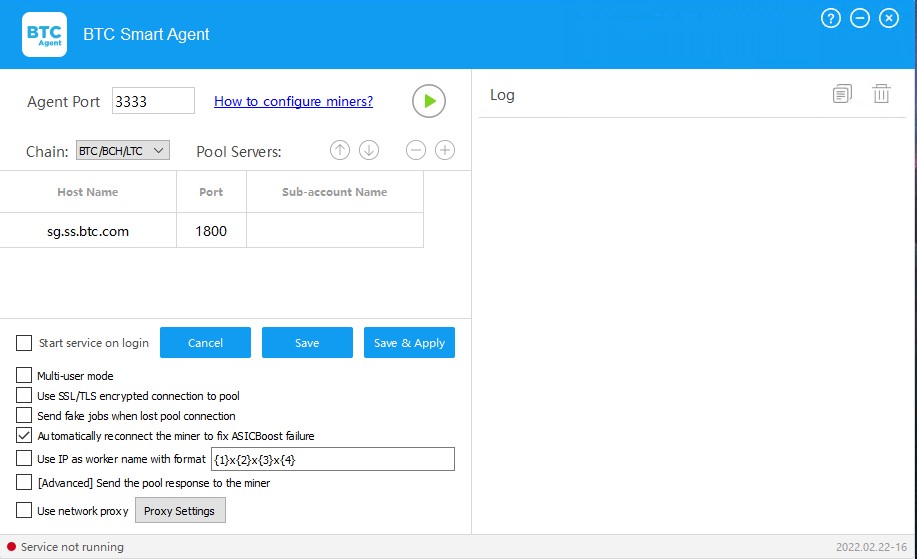
Find ASIC Miners Faster with BTC Smart Agent
If you manage multiple ASIC miners or work with large networks, manual scanning can be slow and unreliable.
BTC Smart Agent helps automatically discover miners within selected IP ranges and displays their real-time status.
Instead of checking routers or using multiple scanning tools, you can:
- Scan custom IP address ranges
- Instantly find active miners
- View device availability and response status
- Quickly detect offline miners
This is especially useful when managing farms with dozens of miners.
Download BTC Smart Agent
BTC Smart Agent is available as a ZIP archive for Windows and does not require installation.
The archive contains one executable file:
- BTC Smart Agent.exe – the main program file.
To run BTC Smart Agent:
- Download the ZIP archive.
- Extract it to any folder on your computer.
- Launch BTC Smart Agent.exe.
Important: Currently, BTC Smart Agent is available only for Windows.
Why Finding the Correct IP Address Matters
Each ASIC miner operates on the network with its own IP address. Without the correct IP address, it is impossible to:
- Access the miner’s web interface.
- Check the miner’s status.
- Add the miner to monitoring software.
- Manage the miner’s settings.
If the IP address has changed or is incorrect, the miner will appear as offline.
Methods to Find ASIC Miners on a Local Network
There are several ways to determine a miner’s IP address.
Method 1 – Use Network Scan
Scanning your local network allows you to discover all available miners on your network.
How it works:
- The system scans an IP address range (for example: 192.168.0.1 to 192.168.0.254).
- After scanning, active devices are displayed.
- Then, devices are identified by IP / MAC / name (if available).
Tip: Make sure you select the correct IP range for your network before starting the scan.
Method 2 – Check the Router Device List
Most routers display a list of connected devices.
How to find the miner:
- Open your router settings in a browser.
- Go to the DHCP / Connected Devices section.
- Compare devices by name, MAC address, or connection time.
- Identify the corresponding IP address.
This method is especially useful if network scanning does not return results.
Method 3 – Check the Miner Display (If Available)
Some ASIC miner models display the IP address on the screen or allow you to show it by pressing a button.
This is the fastest method if you have physical access to the miner.
Why an ASIC Miner May Not Appear in the Network
If BTC Smart Agent cannot find the miner during scanning, you may be experiencing one of the following issues:
Different Network Segments
Your PC and the miner may be located in different subnets.
Examples:
- PC: 192.168.1.x
- Miner: 192.168.0.x
In this case, scanning the selected range will not detect the miner.
Guest Wi-Fi or Network Isolation
Some networks isolate devices from each other:
- Guest Wi-Fi
- Client Isolation
- VLAN segmentation
This prevents the miner from being discovered on the network.
DHCP Assigned a New IP Address
The router may automatically assign a new IP address to the miner after:
- Router restart
- Power outage
- DHCP lease expiration
In this case, the old IP address you used before becomes invalid.
What to Do If the Miner Is Still Not Found
If your miner is powered on but does not appear during network scanning, BTC Smart Agent can help you check the connection.
You can:
- Manually scan a specific subnet
- Check whether the miner responds to requests
- Identify network isolation issues
- Confirm whether the miner is online or offline
This allows you to diagnose problems faster compared to manual checks through the router.
Best Practices for Stable Miner Discovery
To avoid issues in the future:
- Assign static IP addresses.
- Keep a list of your miners.
- Avoid complex network segmentation unless necessary.
- Regularly check your network settings.
Need Help with BTC Smart Agent?
If you experience issues with monitoring, automatic restart, or connection stability, go to the BTC Smart Agent Help page for detailed instructions and troubleshooting guidance.
Frequently asked questions
The IP address may change due to DHCP. This is normal network behavior.
No. Each miner must have a unique IP address.
Yes, network scanning does not affect miner operation.
Compare MAC addresses or temporarily power off the miner to verify which device it is.